


GeekMagic SmartTV-Ultra
August 21, 2025
on
on

The GeekMagic SmartTV-Ultra is one of those quirky little gadgets that instantly makes you smile. Shaped like a miniature retro TV or computer monitor from the pre-flatscreen era, it manages to pack a surprising amount of functionality into a tiny form factor. Mine came in bright yellow, but you can also get it in white, pink, black, silver, gold, or orange. At just 35 mm wide, 39 mm high, and 49 mm deep, it fits easily in the palm of your hand. The front tilts slightly upward, while the back houses ventilation slots and a USB-C port. Each unit ships with a USB-A-to-USB-C cable and a QR code linking to the support page.
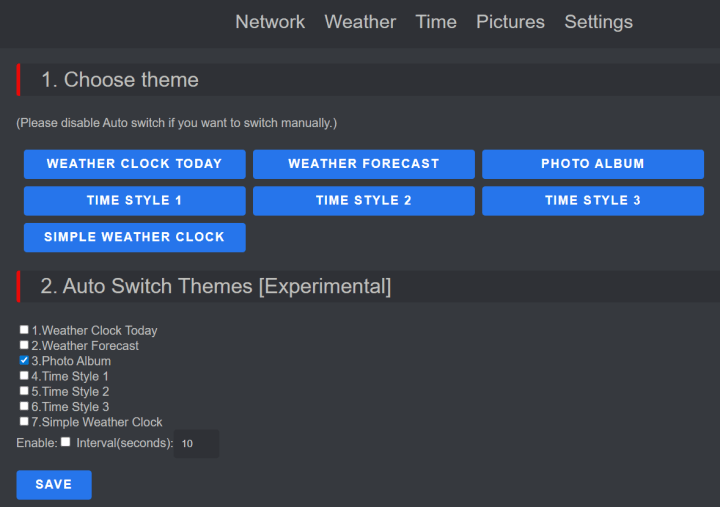
Themes include a weather clock (the default), weather forecast, several clock styles, and even a photo album mode. In photo mode, the SmartTV cycles through images from its library (JPG and GIF, including animated GIFs, at 240 × 240 resolution). You can manage the library directly from the built-in Pictures page.
Official software updates can be installed directly through its webpage, firmware versions are available on GitHub.
First Impressions & Setup
Getting started is refreshingly simple. Power it on, and the SmartTV immediately scans for Wi-Fi while displaying its firmware version (mine was 9.0.31). After about ten seconds, it switches into access point (AP) mode and guides you through the setup. On Android, connecting to the GIFTV network it creates triggers an automatic setup page. From there, you choose your location, pick your Wi-Fi, enter the passphrase, and the device reboots. Within moments, the SmartTV is showing the time, date, and local weather in a colorful way, complete with details on temperature, humidity, wind speed, and cloudiness. Honestly, it’s one of the easiest setups I’ve seen.Features & Customization
Once on Wi-Fi, the SmartTV reveals its full potential. Its IP address pops up every so often in the weather display, letting you access the home page on your network. Here you find the configuration pages loaded with options: theme selection, network settings, night mode scheduling, time format, and more.Themes include a weather clock (the default), weather forecast, several clock styles, and even a photo album mode. In photo mode, the SmartTV cycles through images from its library (JPG and GIF, including animated GIFs, at 240 × 240 resolution). You can manage the library directly from the built-in Pictures page.
Official software updates can be installed directly through its webpage, firmware versions are available on GitHub.
A Note on the Spaceman
Out of the box, the SmartTV displays a small, endlessly rotating astronaut in the bottom-right corner of the weather clock. While some may find it fun, I quickly found it distracting. Thankfully, you can replace it under the “Gif In The Weather Screen” option at the bottom of the Settings page.Under the Hood
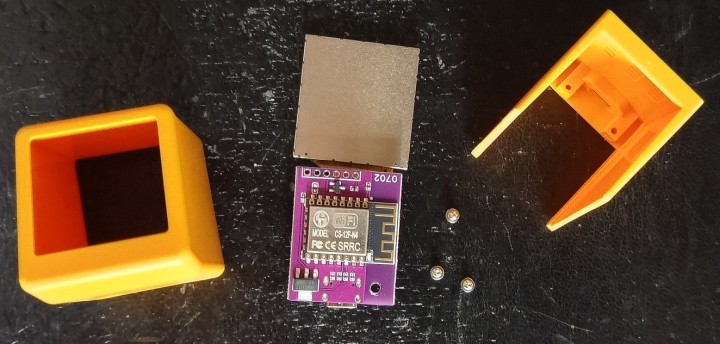
For the curious (or the hackers among us), opening the SmartTV is easy—just remove the two small screws on the bottom. Inside you’ll find:- An ESP12F-clone (CS-12F-N4) module
- An ST7789-compatible TFT display
- A voltage regulator
- A footprint for an ISP connector (useful for firmware updates)
Hacking & Community Support
The SmartTV has attracted interest from the DIY community. Developer Fazibear created a library that allows custom applications, and thanks to its ESP-based design, the ESPHome community has made it possible to integrate the SmartTV into Home Assistant for home automation. If you like tinkering, this little box is a playground.SmartTV-Pro: The Bigger Sibling
If you want even more functionality, consider the SmartTV-Pro. It looks identical to the Ultra but swaps the ESP8266 for an ESP32, adds a touch button on top for screen switching, and offers even more hacking potential. It makes a cool little companion display for a desk or workshop.Final Thoughts
The GeekMagic SmartTV-Ultra is equal parts novelty, desk toy, and hacker canvas. Out of the box, it’s a fun mini weather station and clock. With a bit of tinkering, it transforms into something much more. Whether you’re a retro-tech fan, a home automation enthusiast, or just someone who loves quirky gadgets, the SmartTV-Ultra is a charming little device that punches well above its tiny size. Subscribe
Tag alert: Subscribe to the tag Review and you will receive an e-mail as soon as a new item about it is published on our website! Read full article
Hide full article

Discussion (2 comments)